Track 9 · Lesson 1 of 5
Baselines: writing down what normal is
Record the services, packages, ports and file hashes of your own device, so that a change later has something to be compared against.
This is the first lesson of the defender's half of the course, and it is the quiet one. There is no attack to stop here and nothing dramatic to see. Instead you will write down what your phone normally looks like: which packages are installed, which ports are listening, and which files matter enough to be hashed. That written record is a baseline. You take it on an ordinary day and you keep it. Later, when something feels off, the baseline is the thing you compare against. You cannot notice a change if you never wrote down what normal was.
What you'll be able to do
- Say what a baseline is and why it has to be written down rather than remembered.
- List the packages you have installed and the processes that are running.
- Record the ports your device is listening on.
- Hash the files that matter and store the hashes in one file.
- Stamp the whole record with a date so you know when normal was.
Step 1: Decide what normal means for your device
A baseline is a short list of facts, not a full copy of your phone. You want the facts that would change if something were wrong. For most people that is four things: the packages installed, the processes running, the ports listening, and the hashes of a few files you care about. Start with the packages. Every installed package is software you are trusting.
$ pkg list-installed
bash/stable,now 5.2.37 aarch64 [installed]
coreutils/stable,now 9.5-1 aarch64 [installed]
openssh/stable,now 9.9p1 aarch64 [installed]
That is a short list on a fresh install. If a package you did not install appears here later, that is worth a question. You are not checking for anything specific yet. You are only writing down the list.
A baseline taken in the middle of a busy session records the busy session. Take it when you are not installing anything and not running anything unusual. Then the record describes the ordinary state of the device, which is the state you want to compare against.
Step 2: Record what is running
Processes come and go, so this part of the baseline is a snapshot. The point is not to freeze every process forever. It is to know roughly how many you expect and what they are.
$ ps -eo pid,comm | head -n 6
    PID COMMAND
      1 init
     82 sshd
    104 bash
    137 ps
Four or five rows is normal for an idle Termux session. If you take the baseline today and see twenty later, you do not panic. You ask what changed.
Step 3: Record what is listening
A port that is listening is a door on your device. Most of the time you want none open. netstat -tuln lists the TCP and UDP listeners in numeric form.
$ netstat -tuln
Active Internet connections (only servers)
Proto Recv-Q Send-Q Local Address           Foreign Address         State
tcp        0      0 127.0.0.1:8022          0.0.0.0:*               LISTEN
One line, and it is bound to 127.0.0.1, which is your own loopback and reachable only from the phone itself. Write that down. When you check again and find a listener on 0.0.0.0 instead, you have found a door that opened onto the network, and that is exactly the kind of change a baseline is for.
Step 4: Hash the files that matter
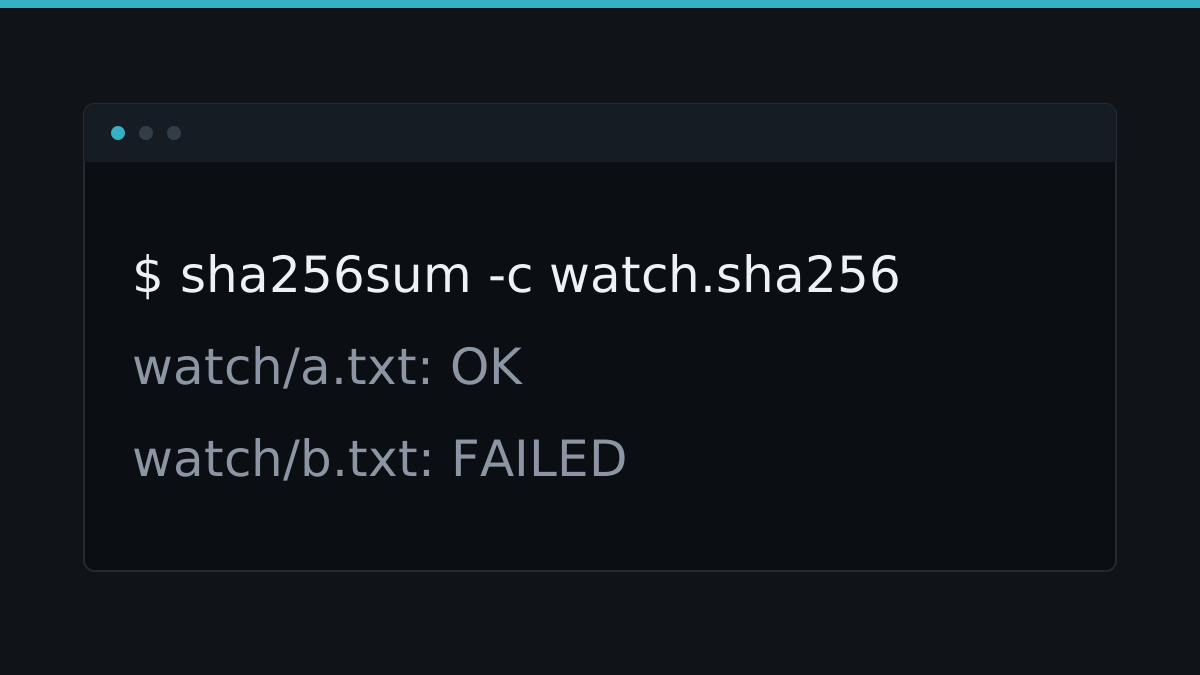
A hash is a short fingerprint of a file. Change one character in the file and the fingerprint changes completely. You will use hashes properly in the next lesson. For now, just record them. Pick a folder you care about, such as your own scripts, and hash every file inside it.
$ find ~/bin -type f -exec sha256sum {} +
9c1f0c2b7a4d8e3f5b6a1c0d9e8f7a6b5c4d3e2f1a0b9c8d7e6f5a4b3c2d1e0f  /data/data/com.termux/files/home/bin/backup.sh
find walks the folder and hands each file to sha256sum, which prints the digest, two spaces, then the path. Keep this line. If the file changes later without you changing it, the digest will not match, and you will see it.
Step 5: Put it in one dated file
A baseline is only useful if it lives in one place you can find. Gather the sections into a single file and stamp it with the time you took it. Redirection sends all the output to the file instead of the screen.
$ { echo "== taken =="; date -u +%Y-%m-%dT%H:%M:%SZ; echo "== packages =="; pkg list-installed | sort; echo "== ports =="; netstat -tuln; } > ~/baseline.txt
$ wc -l ~/baseline.txt
9 ~/baseline.txt
The braces group the commands so one redirection covers them all. date -u prints the time in UTC, which is a fixed reference and does not shift with daylight saving. The sort keeps the package list in a stable order, so two baselines taken on different days line up when you compare them.
Step 6: Compare later
Months from now, take a second snapshot into a new file and compare the two. diff prints only the lines that differ.
$ diff ~/baseline.txt ~/baseline-new.txt
5a6
> netcat/stable,now 1.2.0 aarch64 [installed]
Read the > line as "present in the new file, not in the old". A package appeared. That is the whole method: write normal down, keep it, and let diff show you what moved.
A baseline does not make your device safe. There is no such thing as perfectly secure, only varying degrees of exposure. What a baseline does is shrink the gap between what you assume is happening and what is actually happening. It turns a vague feeling that something is wrong into a specific line that changed.
Quick reference
| Command | What it does |
|---|---|
pkg list-installed | Lists the packages you have installed |
ps -eo pid,comm | Lists running processes with their ids |
netstat -tuln | Lists TCP and UDP listeners in numeric form |
find ~/bin -type f | Lists every file in a folder tree |
find ~/bin -type f -exec sha256sum {} + | Hashes every file it finds |
date -u +%Y-%m-%dT%H:%M:%SZ | Prints the current time in UTC |
{ cmd1; cmd2; } > file | Sends the output of several commands to a file |
sort | Orders lines so two snapshots line up |
wc -l file | Counts the lines in a file |
diff old new | Prints the lines that differ |
Next steps
- File integrity: noticing a change turns the hashes you wrote here into a check you can run on demand.
- Alerting on your own device makes the phone tell you when a baseline stops matching, instead of you remembering to look.
- Hardening your Termux setup covers the ports and packages you wrote down, and how to close the ones you do not need.
Test yourself on this
4 questions and 1 task where you run a real command, with the reasoning explained either way.